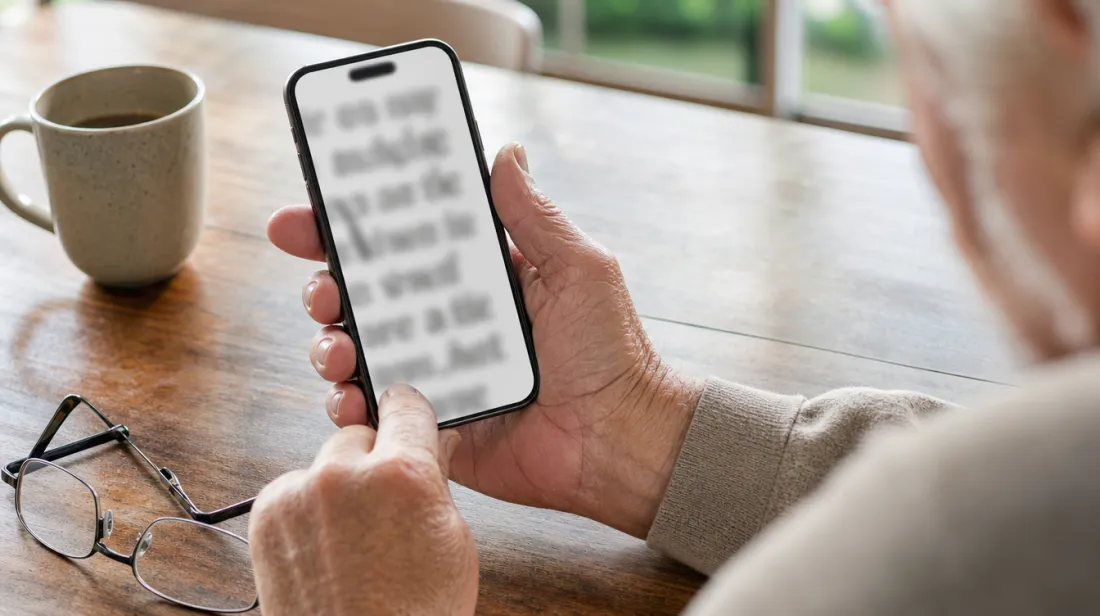
If you find yourself holding your phone at arm's length, or asking someone to read a message out loud, the problem is usually not your eyes. It is the tiny default text size most phones ship with.
Both iPhone and Android have real settings built in to fix this. They are not hidden tricks. They are just tucked into menus most people never open.
You do not need to change your whole phone. A few small adjustments can make every app, from texts to email to the weather, easier to read at a glance.
Make the Text Itself Bigger
Both phone types let you set a larger text size that applies almost everywhere, not just in one app. On an iPhone, look in Settings under Display and Brightness, then Text Size. On Android, look in Settings under Display, then Font Size, though the exact wording can vary a little by phone brand.
Move the slider up a notch or two and look at your home screen. You will usually see the change right away in your text messages and in app menus.
If it still feels small, move it up again. There is no penalty for going further.
Turn On Bold Text
Bigger text helps, but bold text helps in a different way. It thickens every letter, which makes words easier to make out even at the same size, especially in bright light or from a slight distance.
This setting usually sits right next to the text size slider, in the same Display menu on both phone types. Turning it on changes the whole phone at once, not just one app, so you only have to do it once.
Use the Zoom or Magnifier Feature
For moments when even larger text is not enough, both phones have a magnifier you can call up on demand. On an iPhone, look in Settings under Accessibility for a feature called Zoom, which lets you pinch or tap to blow up whatever is on screen. Android has a similar magnification feature, usually under Settings, Accessibility.
Once turned on, you can usually trigger it with a quick gesture, like tapping the screen three times. It takes a little practice, but once it clicks, you can use it on any app, any time, without changing your regular settings.
A Few Settings Worth Checking Together
If you are already in the Display or Accessibility menu, it is worth glancing at a few related settings while you are there.
- Increase contrast, sometimes listed as a way to make text stand out more from its background.
- Reduce transparency, which can make menus and buttons look sharper and less see through.
- Turn up brightness a little, since low brightness makes any text harder to read, no matter the size.
None of these take more than a tap or two, and they work together with larger text to make the whole screen calmer to look at.
If a Setting Is Hard to Find
Phone menus get rearranged with software updates, so a setting that used to sit in one place can move. If you cannot find something by its exact name, try the search bar at the top of the Settings app and type in a plain word like "text size" or "zoom."
A grandchild, neighbor, or the phone store where you bought it can usually find a setting in under a minute if you get stuck. There is no shame in asking. Phone menus are not always logical, even for people who use them every day.
Set It Once and Move On
The nice part about these settings is that you generally only adjust them once. After that, every app on your phone reflects the change, from your text messages to your calendar to your banking app.
Take a few minutes this week to go through Display and Accessibility settings and nudge a few sliders. It is a small task with an outsized payoff every time you pick up your phone.
Once the text is a size that feels comfortable, you may notice you reach for your phone more, not less, simply because using it stopped feeling like work.